Ghost of Tsushima Photo Mode: Cinematic Capture Guide
Matt Nursalim
6/18/20269 min read
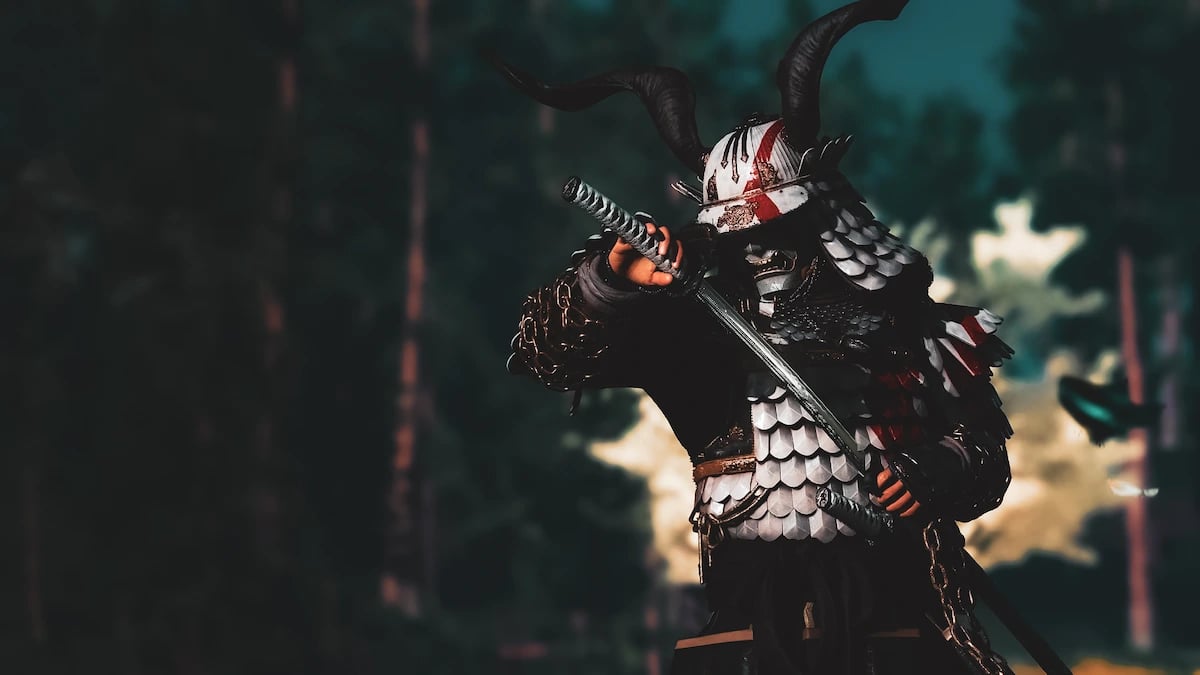
Ghost of Tsushima's photo mode gives you 21 controls to work with: camera, depth of field, precise time of day, weather, 13 particle types, color grades, Kurosawa mode integration, and Tracking Shot for cinematic sweeps. It runs on PS4, PS5, and PC, and it's one of the most compositionally complete photo modes Sucker Punch Productions has shipped. This guide walks through everything from access to technique — if you're here for a quick answer or a full VP workflow, stay with it to the end.
TL;DR
Open photo mode on PlayStation by pressing right on the D-pad; on PC keyboard, press P; on PC controller, hold right on the D-pad and click the right analog stick
Jin and animals freeze on entry, but background elements keep moving unless you toggle Animated Environment off
Kurosawa mode is enabled from display settings, not from inside photo mode, and it applies a separate film grain system to the whole game
Tracking Shot stores up to 16 camera positions and sweeps between them in a single continuous motion
Time of Day adjusts to any moment, precise to the second
PC screenshots save via Steam (library > game hub > screenshots) or via File Explorer (Documents > Ghost of Tsushima DIRECTOR'S CUT > Screenshots) on Epic Games Store
How to open photo mode in Ghost of Tsushima on PS4, PS5, and PC
Enable photo mode first: go to Options > Gameplay > Photo Mode and toggle it on. Without this step, the D-pad shortcut does nothing.
Once enabled:
On PlayStation (PS4 or PS5): press right on the D-pad
On PC keyboard: press P
On PC with a controller: hold right on the D-pad and click in the right analog stick
Photo mode is available during open-world exploration and during combat. It does not work during cutscenes, which are the sequences with black bars at the top and bottom of the screen.
When you enter photo mode, Jin and nearby animals freeze in position. Fire, flowing water, leaves, distant movement, and other background elements continue animating unless you toggle Animated Environment off. That distinction matters for stills versus video captures, and it's the basis for the lightning technique covered later.
On PC: the keyboard shortcut may trigger an automatic screenshot at the moment you open photo mode. This was partially fixed in Update 3 (June 2024) for Xbox and Steam Deck controllers; behavior on other input setups varies. If it's happening consistently, rebinding the photo mode key away from your Steam screenshot shortcut clears the conflict. Screenshots save via Steam (library > Ghost of Tsushima: Director's Cut > screenshots section in the game hub) or via File Explorer to Documents > Ghost of Tsushima DIRECTOR'S CUT > Screenshots if you're on Epic Games Store.
What each Ghost of Tsushima photo mode setting does
All 21 controls split into three groups: camera, image, and scene. Knowing which group you're in tells you what part of the shot you're actually changing.
Camera controls
Tracking Shot is covered in its own section below because it works differently from everything else on the list.
Focal Length runs from 12mm equivalent at the wide end to roughly 300mm at the telephoto end. Wide angles distort perspective and make environments feel large. Longer focal lengths compress distance and isolate subjects from the background. Roll tilts the camera on its axis for Dutch angles or straight-line correction.
Depth of Field works on f-stop values. Lower numbers produce a shallower plane of focus with more background blur. The effect amplifies at longer focal lengths and at shorter distances to your subject, the same optical relationship as a real camera lens. Focus Distance lets you place the sharp point manually, from 10cm out to 200m.
Image and color
Color Grading is where the strongest visual decisions live. Presets include Vivid, Black & White, Black & White Vintage, Storm, Autumn, and Ginkgo. Ginkgo isolates yellow tones: gold armor trim and autumn forests hold their color while everything else drops toward neutral. Storm pushes the image into blue-grey, useful for rain scenes and combat. Black & White Vintage adds film grain on top of the desaturation. Color Grading Intensity blends from 0 to 100, so you're not locked to the full preset look. Exposure Bias adjusts overall brightness.
Scene and subject
Particles add atmospheric elements. There are 13 types: leaves in several colors, ash, embers, fireflies, butterflies, cherry blossoms, birds, and others. Particle Intensity controls density.
Wind Speed and Wind Direction (0 to 360 degrees) affect how particles move, and how Jin's cape and the surrounding grass behave when Animated Environment is on. Clouds repositions cloud formations in the sky. Time of Day sets the sun position across a full 24-hour cycle, with the sun tracking directional light as you move through it, moonlight fixed. Weather options: clear, rain, fog, thunder, snow, and direct sunlight with visible rays. Animated Environment toggles background animation between live and frozen.
On the subject side: Jin Emotion changes his facial expression; Helmet/Mask shows or hides headgear. Cinema Bars applies a 2.35:1 letterbox crop. Stamp overlays the Ghost of Tsushima logo. Music adds one of nine original soundtrack tracks.
Tracking Shot: what it actually does and when to use it
Tracking Shot is the feature most players never figure out. If you've only accidentally marked a position and moved on, here's what it's for.
Enter photo mode and position the camera where you want the sweep to begin
Press X to save that position
Move the camera to the next position and press X again
Repeat up to 16 saved positions
Press Triangle to play the sweep, and the camera moves continuously through all saved positions in order
The result is a single uncut camera movement. Use it for a slow reveal of a landscape from behind rocks, a rotating orbit around Jin mid-standoff, or a traveling shot through a burning settlement. It's the feature that separates photo mode as a screenshot tool from photo mode as a cinematography instrument. If you're working out what virtual photography means as a practice beyond screenshots, what virtual photography actually is and how tools like Tracking Shot change that definition is worth reading first.
One honest limitation: sweep speed between positions is fixed. You can't slow one segment and accelerate another. Plan positions that are close enough together for smooth, controlled motion. Positions placed too far apart produce a fast, disorienting sweep.
How Kurosawa mode works with photo mode
Kurosawa mode is a black-and-white film grain effect built as a tribute to filmmaker Akira Kurosawa. Sucker Punch studied his work during development and the Kurosawa estate gave permission for the name. It is not a setting inside photo mode. You enable it from the main display settings, and it changes how the entire game renders.
The film grain and desaturation that Kurosawa mode applies operate at the display level, separately from the Color Grading options inside photo mode. This means you're working with a committed, heavier aesthetic than the in-photo-mode Black & White grade, which is softer, blendable at any Intensity value, and keeps you in control shot to shot.
Kurosawa mode suits silhouette compositions, rim-lit profiles, and high-contrast scenes with a single strong light source. Cinema Bars pair well with it. For a full session across varied locations where you want flexibility across shots, the in-photo-mode Black & White grade is the more practical tool. For one specific, deliberate still with a cinematic film look, Kurosawa mode delivers something the internal color grades can't match. Browse Allister's Ghost of Tsushima gallery to see both approaches applied across different environments and lighting on the island.
How to get better shots: light, depth of field, color, and particles
The controls give you the variables. The decisions about which to move and why are where the actual craft sits.
Light direction and time of day
The sun tracks across a full 24-hour cycle as you move Time of Day. Early morning and late afternoon produce low-angle directional light with long shadows, making subject separation easier because raking light picks out texture and form. Midday light falls flat from directly above, harder to work with for anything that depends on dimension or separation. "Precise to the second" is real: setting 7:14:30 versus 7:14:00 changes shadow angle in a way that reads in the final capture when you're working with a specific landmass or architectural element.
Depth of field and focal length
Set Depth of Field before you finalize composition. Shallow DoF (low f-stop, longer focal length, subject closer to camera) isolates Jin and pushes the background out of the frame's attention. Deep DoF keeps everything sharp, which works for wide environmental shots where the landscape is the subject. A common mistake: setting a shallow DoF and then going wide with focal length. The bokeh disappears because the optical relationship depends on distance and focal length together. Go longer, close the distance to your subject, then pull the focus manually.
The environmental scale in games like Red Dead Redemption 2 shows how atmospheric depth carries a frame without a strong foreground subject. GoT operates the same way. Knowing when to let the landscape dominate versus when DoF strips it back is one of the more transferable composition skills the game trains.
Color grade decisions
Ginkgo at 70 to 80% intensity tends to read better than at 100%. Full intensity flattens mid-tones in a way that looks processed rather than intentional. Storm suits any scene with water or conflict without needing full desaturation. Black & White Vintage with particle grain and Cinema Bars is the most direct path to a samurai cinema aesthetic without enabling Kurosawa mode.
For consistency across a session, pick a grade and hold it. Mixing Autumn in one frame and Storm in the next produces a gallery that reads as experiments, not a body of work.
Wind, particles, and the lightning capture technique
Keep Particle Intensity under 30% unless you want particles to dominate the frame. At full intensity they compete for attention. At 10 to 20% they add movement without pulling the viewer off the subject. Wind Direction is precise enough to aim Jin's cape deliberately. If it falls flat or blows toward the camera, a small adjustment to Wind Direction and a bump in Wind Speed fixes it.
For lightning: set Weather to Thunder, toggle Animated Environment off, then switch it back on. The animation restarts, and the first event to fire is usually a lightning strike. Toggle fast and you freeze it mid-frame. It takes a few attempts to catch a clean bolt, but the timing becomes reliable once you're familiar with it. For how deliberate light sourcing translates into the kind of drama that makes a capture worth keeping, the God of War gallery is a useful visual reference for what intentional composition looks like across fixed, dramatic environments.
Ghost of Tsushima as a VP training ground
GoT's photo mode gives you more simultaneous compositional variables than most games: light, weather, particles, DoF, and subject pose all adjustable at once. That combination makes it genuinely useful as a place to build compositional instincts, not just capture moments that happen to look good.
The skills it trains carry across titles. The light-direction thinking you develop in Tsushima's fog and golden hour applies in the neon-and-rain of Cyberpunk 2077's photo mode, where artificial sources replace natural ones but the compositional logic stays the same. The atmospheric patience it builds shows up in Death Stranding's photo mode, a completely different visual language that still depends on reading distance, weather, and subject placement. If GoT is where the habits formed, Ghost of Yōtei is where you run them against a new toolset. The sequel adds shutter speed control to photo mode, which changes how motion reads in a capture.
Browse Allister's Ghost of Tsushima cinematic gallery to see these techniques applied across the island's different regions and lighting conditions.
Frequently asked questions
How do you open photo mode in Ghost of Tsushima?
Go to Options > Gameplay and toggle Photo Mode on. During gameplay, press right on the D-pad on PlayStation, or P on a PC keyboard. On PC with a controller, hold right on the D-pad and click in the right analog stick. Photo mode works during exploration and combat but not during cutscenes.
Does Ghost of Tsushima photo mode pause the game?
Partially. Jin and nearby animals freeze when you enter photo mode. Background elements, including fire, leaves, water, and wind movement, continue running unless you toggle Animated Environment off. It is not a full pause.
Can you use photo mode during combat in Ghost of Tsushima?
Yes. Photo mode is accessible during combat as well as open-world exploration. Characters and animals freeze on entry, which makes composing action shots possible mid-fight.
How does Tracking Shot work in Ghost of Tsushima photo mode?
Tracking Shot saves up to 16 camera positions. Position the camera, press X to save, reposition, press X again, and repeat. Pressing Triangle plays a smooth continuous camera sweep through all saved positions in order. It's most useful for cinematic video captures and multi-angle sweeps of a location.
Where do Ghost of Tsushima screenshots save on PC?
On Steam: open your library, select Ghost of Tsushima: Director's Cut, and scroll to the screenshots section on the right side of the game hub page. On Epic Games Store: go to File Explorer > Documents > Ghost of Tsushima DIRECTOR'S CUT > Screenshots.
What color grades does Ghost of Tsushima photo mode have?
Options include Vivid, Black & White, Black & White Vintage, Storm, Autumn, and Ginkgo. Ginkgo isolates yellow tones. Color Grading Intensity blends any grade from 0 to 100, so you can mix rather than apply at full strength.
Can you change the time of day and weather in Ghost of Tsushima photo mode?
Yes. Time of Day adjusts to any moment with second-level precision across a full 24-hour cycle. Weather options include clear, rain, fog, thunder, snow, and direct sunlight with visible rays. Cloud position adjusts independently.
What is Kurosawa mode in Ghost of Tsushima?
Kurosawa mode is a black-and-white film grain effect enabled from the main display settings, not from inside photo mode. It applies a heavy grain and a specific contrast curve to the entire game's rendering, inspired by the samurai cinema of filmmaker Akira Kurosawa. It operates separately from the Black & White color grade available inside photo mode.
Can you use photo mode in Ghost of Tsushima Legends multiplayer?
Photo mode is available in single-player story mode only. It is not accessible during Ghost of Tsushima: Legends multiplayer sessions.