Assassin's Creed Shadows Photo Mode: Feudal Japan Through a Lens
Matt Nursalim
6/26/202610 min read
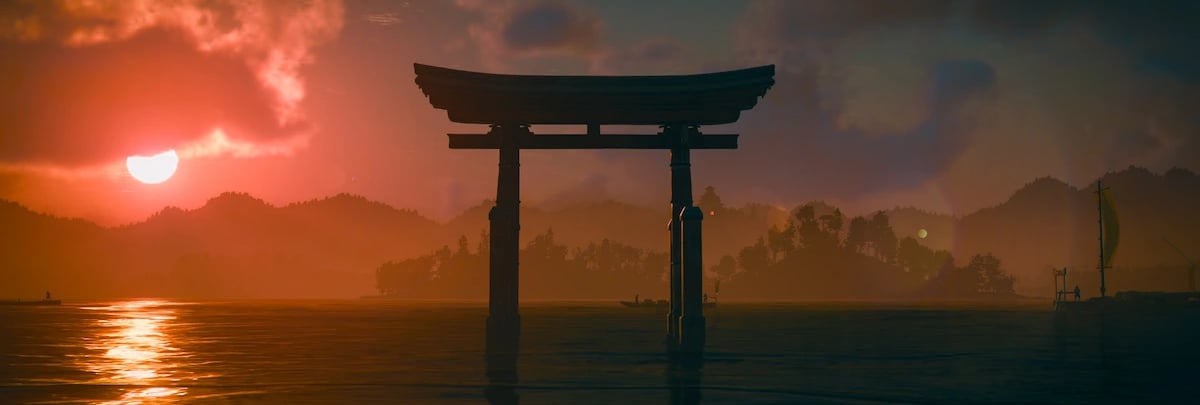
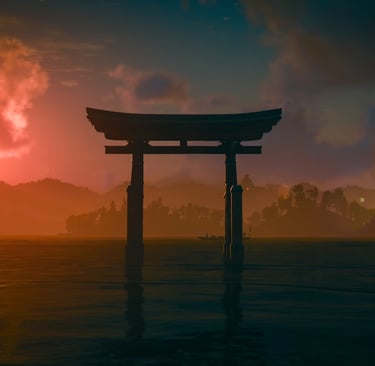
Assassin's Creed Shadows includes a built-in photo mode with four control tabs: Camera, Lens, Filters, and Decorations. Since Update 1.0.5, it also supports time-of-day changes, character poses, facial expressions, and headgear toggle. It activates with F3 on PC or L3+R3 on controller, unlocks after completing "An Unpayable Debt," and screenshots save to Documents\Assassin's Creed Shadows\Photos on PC.
This guide covers everything from the basics of activation and settings to filter strategy, composition technique for Naoe and Yasuke, screenshot quality, the Otis_Inf free camera for PC, and the best environments to work in. Whether you are new to virtual photography in games or approaching Shadows as a VP practitioner, read on for a complete breakdown.
TL;DR
Activate: F3 (PC keyboard) or L3+R3 (controller); not available during cutscenes
Unlock gate: complete "An Unpayable Debt" early in the story
Four tabs: Camera (roll, focal length, grids), Lens (DoF, aperture, focal distance, auto-focus, grain), Filters (FX Filters plus brightness, exposure, temperature, tint, saturation, contrast), Decorations (vignette, frames, stickers)
Post-Update 1.0.5: time-of-day control, character poses, facial expressions, headgear toggle, music playback, and sticker colorization all added to native photo mode
Remaining limitations: weather toggle and in-scene light placement are still absent
Screenshots save to: Documents\Assassin's Creed Shadows\Photos on PC (in-game capture); use Steam F12 for better file quality
PC advanced tool: Otis_Inf free camera mod adds camera paths, fog control, and slow-motion beyond what the native mode offers
How to open photo mode in AC Shadows (and when it unlocks)
Photo mode in Assassin's Creed Shadows activates by pressing F3 on keyboard or simultaneously clicking both thumbsticks (L3+R3) on controller. It is not accessible during cutscenes or quick-time events. The mode unlocks story-gated: you gain access after completing the mission "An Unpayable Debt," roughly two hours into the game.
Once you are in, the game pauses. You can move the camera freely in three dimensions, zoom in and out, and adjust every setting while the world sits still. When you want to check your composition without the menu overlay, press Space on PC (or the equivalent Preview prompt on controller) to hide the UI. That gives you a clean look at the frame before you commit the shot. Note that as of Update 1.0.7, the "Show UI" prompt previously visible in Preview mode has been fixed, so native screenshot tools should now capture a clean frame.
If you are new to virtual photography in games, AC Shadows is a reasonable starting point. The four-tab layout is consistent with what Ubisoft uses across the AC series, so photographers coming from Valhalla, Odyssey, or Mirage will recognize the structure immediately.
What the four tabs actually do
The Camera tab handles framing across three controls: roll to tilt the frame, focal length to zoom in or out, and cycle grids for composition reference overlays. The Lens tab handles focus through depth of field, aperture, focal distance, an auto-focus toggle, and grain. Filters covers two layers: FX Filters for full stylistic transforms and standard Filters for color presets, with manual controls for brightness, exposure, temperature, tint, saturation, and contrast. Decorations adds vignette (with intensity and size controls), frames, and stickers with X/Y positioning, rotation, scale, and colorization.
Most VP practitioners will skip Decorations unless working toward a specific editorial look. Update 1.0.5 expanded the mode significantly, adding time-of-day control, character poses, facial expressions, headgear toggle, music playback during editing, and custom filter options alongside these four tabs.
Using depth of field to separate your subject from Shadows' dense environments
AC Shadows' Lens tab controls depth of field through three settings: Aperture (blur intensity), Focal Distance (where focus lands in the scene), and an Auto-Focus toggle. Shallow depth of field isolates a subject against background blur. Deeper field extends focus across the full environment. For portrait work with Naoe, shallow DoF is usually the right call. For wide architectural or landscape captures, pull the field deeper so the environment reads in full.
The Anvil engine's Japan is visually dense. Foliage, wooden architecture, and background NPCs all compete for attention in a single frame. Without DoF, many shots feel flat, the subject swallowed by detail behind them.
Aperture works like this: a lower value creates a shallower field and more background blur; a higher value extends focus across the scene. The difference between an aperture of 1.4 and 8.0 in a forest environment is the difference between a portrait and a landscape shot, the same scene read with completely different intent.
Auto-Focus does not always lock where you expect. In environments with strong foreground elements, it tends to focus on the nearest object rather than your intended subject. Switch it off and set Focal Distance manually for anything where precision matters.
One genuine frustration with the mode: shallow DoF backfires in tight interior spaces. Push the aperture too low inside a shrine or tavern and the nearest wall texture blurs before the background does, which flattens depth instead of creating it. The fix is pulling back the focal length slightly and accepting a slightly deeper field in confined spaces.
Filters that work and ones that can stay in the menu
AC Shadows photo mode has two filter layers: standard Filters for color grading, including Sakura, Cold, and Warm options, and FX Filters for full stylistic transforms including Black & White, Ink, Red Dragon, and Animus. Standard filters shift the mood of a shot. FX Filters replace its visual language entirely.
Here is how each reads in practice:
Sakura works in open environments with soft or overcast light. It lifts warm tones in cherry blossom and garden settings, reducing harsh contrast in midday shots. In dark interiors or heavy fog, it does not land well.
Ink converts the scene to a woodblock print aesthetic. It is strongest on architectural geometry, shrine gates, and silhouette work where hard edges define the frame. Portraits lose facial detail under it, reading as graphic rather than human.
Black & White is the strongest filter for high-contrast combat and stealth shots. Naoe's silhouette in a shadowed doorway, mid-crouch, reads with sharp graphic clarity in B&W in a way that color can diffuse. It is less useful in wide open landscapes without strong shadow structure.
Red Dragon works in specific conditions: interior lantern light, temple spaces, and night battle scenes where the warm-red cast has something to work with. In open-sky or green-foliage environments it overwhelms the frame rather than transforming it.
Animus is a full commitment. The blue-white procedural effect is visually consistent and recognizable, but there is no halfway version. It works when that is the intent. Otherwise it limits everything else.
For color grading without an FX Filter, Exposure is more useful than Brightness in most situations. Brightness lifts or drops the frame uniformly. Exposure adjusts the tonal range before clipping, giving finer control in high-contrast scenes without washing out highlights or crushing shadows.
Naoe and Yasuke ask for different cameras
Naoe and Yasuke read differently through the lens, and that was true even before Update 1.0.5 added pose and expression control. Now you have both options: timing the shot within an animation, and staging a pose directly.
Naoe's compact silhouette, fast animation states, and stealth postures reward tight framing and shallow depth of field. Her quick, low-to-the-ground movement produces natural compositions in parkour and assassination sequences that a staged pose alone rarely matches. Activate photo mode mid-animation in an assassination or rooftop transition, use Black & White or Ink, pull the focal length back slightly to compress the background without losing the sense of space around her, and the shot frequently builds itself.
Yasuke is a different problem. His scale works against tight framing and reads cramped in a close shot. A low angle with a wider focal length and shallow DoF on the background creates a sense of physical dominance. Red Dragon or no FX filter suits these shots better; the warm-toned or unfiltered render lets armor and weapon detail carry the frame. With pose control now available, you can also position him against an architectural backdrop before adjusting the camera angle, which opens up compositions that pure animation timing could not produce.
The pose and expression system added in 1.0.5 is a meaningful addition. In Ghost of Tsushima's photo mode, character staging was available from launch. Shadows took longer to get there, but the gap is closed for the most practically important features.
What AC Shadows photo mode still cannot do
After Update 1.0.5, the feature gap between AC Shadows and Ghost of Tsushima's photo mode narrowed considerably. Time-of-day control, character poses, and facial expressions are now all in the native mode. Two notable absences remain: weather toggle and the ability to place light sources within a scene.
Weather and lighting conditions in Shadows are whatever the game cycle provides. That is not a dead end for VP work. The game's dynamic seasons produce conditions no filter replicates. Snow diffuses the shadow map differently than overcast sky or direct summer light. Autumn foliage shifts the warm cast of a whole environment without a filter applied. Winter sessions in particular produce quieter, softer architectural shots that high-contrast summer light makes harder to compose.
The honest comparison with Ghost of Tsushima's photo mode in its current state: GoT offers a deeper expression system, a more curated world with consistently striking vantage points, and the artistic visual style that makes it a VP favorite even now. Shadows counters with a denser photorealistic render, a stronger FX Filter set, a wider camera range, and an online sharing feature that places your photos on other players' maps. They remain different disciplines in the same setting, not a clean hierarchy.
Where screenshots save and how to get better file quality
Screenshots from AC Shadows photo mode save to C:\Users[Windows Username]\Documents\Assassin's Creed Shadows\Photos on PC when taken through the in-game capture button. The file quality there is compressed JPG, typically around 2MB even at 4K settings.
For better output, use Steam's F12 key instead of the in-game button. Steam captures at the rendered quality level, and you can locate your screenshots through the Steam library by right-clicking a screenshot and selecting "Show on Disk." The Ubisoft Connect built-in screenshot tool (also F12 in Ubisoft Connect) saves to C:\Users[username]\Pictures\UbisoftConnect. On PS5 and Xbox, screenshots go to the console's media gallery.
If you are using an HDR display on PC, Xbox Game Bar (Win+G) avoids tone-mapping issues that occasionally affect in-game captures. In high-contrast scenes, HDR output pushed through in-game JPG compression can clip highlights in ways that Game Bar capture does not. For VP work that you plan to take into Lightroom or Photoshop post-session, the higher-quality source file from Steam or Game Bar is worth the extra step.
Going further on PC: the Otis_Inf free camera
Frans Bouma, known in the VP community as Otis_Inf, has a free camera mod for Assassin's Creed Shadows on PC that extends the native photo mode. Available through a Patreon subscription at opm.fransbouma.com, it works on both Ubisoft Connect and Steam versions. Windows-only. Console photographers, nothing here applies.
Before 1.0.5, Bouma's time-of-day control was the main reason to reach for this tool. That gap is now closed natively. What it still adds that the native mode does not: camera path (dolly cam) functionality for cinematic video work, fog density control, slow-motion game speed for precise action shot timing, and a HUD toggle via ReShade that removes the black bar letterbox overlay more reliably than the native Preview mode in some situations.
If you are serious about VP on PC and work across multiple titles, the subscription covers a library of tools across dozens of games, including Cyberpunk 2077, Death Stranding, Ghost of Tsushima, and more. For Shadows specifically, it turns the native mode into a video production tool as much as a photography one.
The best environments in AC Shadows for VP work
AC Shadows' Kansai region produces several distinct environment types, each with different compositional strengths. Seasonal conditions are the primary variable you cannot manufacture, so timing a session around them matters.
For architectural and geometric shots, castle compounds, shrine gates, and wooden district streets give you vertical leading lines that compress well at a telephoto focal length. The geometry is precise and rewards patient framing.
Forest and mountain environments work best for wide composition and silhouette work. Bamboo groves respond better to oblique angles where the vertical stems create rhythm across the frame. Shot straight-on, they flatten into a wall. Mountain paths produce natural frame-within-frame compositions from below a canopy or under a rock arch.
Interior environments are the most underused in this game. Taverns, forge spaces, and temple interiors carry warm low-light conditions that no Filters setting fully replicates outdoors. The Red Dragon FX filter tries to manufacture what these interiors already provide naturally. Shooting interiors without any FX filter at all, letting the lantern light do the work, frequently produces better results.
Snow sessions deserve separate mention. Winter light in Shadows diffuses the shadow map differently than any other condition in the game. Compositions that read harshly in summer direct light become quieter and more layered under winter overcast. It is worth planning at least one dedicated snow session before working in other seasons.
The AC Shadows gallery
The shots in AC Shadows gallery cover Kansai's architectural and landscape environments: castle approaches, forest light, and the slower compositional work that the game's open world rewards when you stop moving through it.
For context on how this mode fits into the AC series from a photography standpoint, the galleries from Odyssey, Mirage, and Valhalla each document how differently Ubisoft's Anvil engine reads across historical periods and geographic environments. The visual problem changes each time.
Frequently asked questions
How do you open photo mode in Assassin's Creed Shadows?
Press F3 on PC keyboard or simultaneously click both thumbsticks (L3+R3) on controller. Photo mode is not available during cutscenes or quick-time events. It unlocks after completing the story mission "An Unpayable Debt," approximately two hours into the game.
Where are Assassin's Creed Shadows screenshots saved on PC?
Screenshots taken through the in-game photo mode save to C:\Users[Windows Username]\Documents\Assassin's Creed Shadows\Photos. For better file quality, use Steam's F12 key instead; those screenshots save to the Steam screenshot folder, accessible via right-click in your Steam library. Ubisoft Connect's own F12 tool saves to C:\Users[username]\Pictures\UbisoftConnect.
Can you change the time of day in AC Shadows photo mode?
Yes, as of Update 1.0.5 (May 2025). Time-of-day control is now part of the native photo mode on all platforms. Weather toggle and in-scene light placement are still not available natively, though the Otis_Inf PC mod covers fog and additional environment adjustments.
Can you pose characters in Assassin's Creed Shadows photo mode?
Yes, as of Update 1.0.5. Ubisoft added character poses, facial expressions, and a headgear toggle to the native photo mode in May 2025, alongside music playback and sticker colorization. Timing shots within animations is still a useful technique alongside the new pose system.
Does AC Shadows photo mode work during cutscenes?
No. Photo mode cannot be activated during cutscenes or quick-time events. It is only available during standard gameplay and free roam.
How does AC Shadows photo mode compare to Ghost of Tsushima's?
The gap closed significantly with Update 1.0.5. AC Shadows now includes time-of-day control, character poses, and facial expressions, which were previously GoT advantages. Ghost of Tsushima still offers a deeper expression system and a more artistically curated world, while Shadows counters with a stronger FX Filter set, a wider camera range, and the photorealistic Anvil engine render. They suit different VP approaches in the same feudal Japan setting.
What are the best filters to use in AC Shadows photo mode?
For VP work: Black & White reads best in high-contrast stealth and combat shots; Ink works well on architectural silhouettes and shrine gates; Sakura suits soft-light garden and cherry blossom environments; Red Dragon works in interior lantern-lit spaces. Animus is a full stylistic commitment. For color grading, adjusting Exposure before Brightness gives finer control without clipping highlights.
Can you disable photo mode in Assassin's Creed Shadows?
Yes. Go to Options, select the Gameplay tab, and toggle the Photo Mode option to Off. This prevents accidental activation during play without removing any functionality permanently.