Space Marine 2 Photo Mode: Capturing the Chaos
Matt Nursalim
6/19/20267 min read
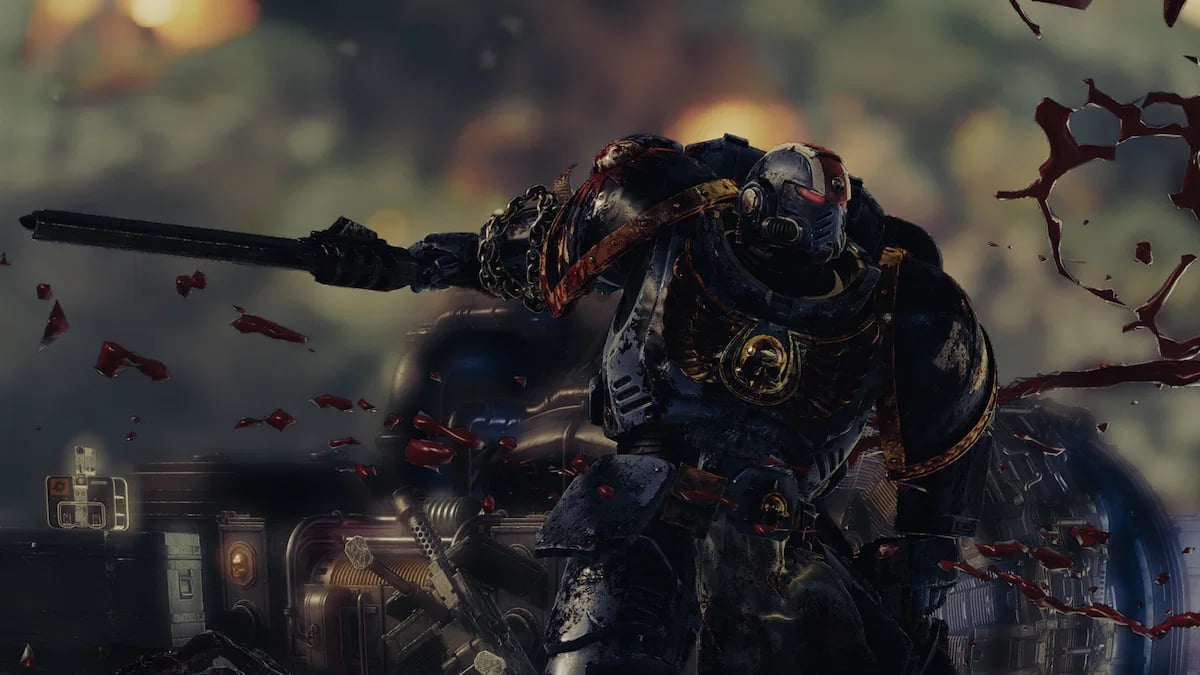
Space Marine 2 photo mode lets you freeze combat on any frame and compose shots inside one of the most visually detailed games Saber Interactive has built on its Swarm Engine. It covers the campaign and solo Operations (added in Patch 4.0, October 2024), and gives you control over camera position, depth of field, field of view, image effects, character expressions, and filters. This guide walks through exactly how to access it, what every setting actually does, and how to approach it like a virtual photographer rather than just someone taking screenshots. Read through to the end and you'll leave with a working shot strategy for the grimdark chaos Space Marine 2 was built for.
TL;DR
Open photo mode by pausing, then pressing F (PC), Square (PS5), or X (Xbox Series X|S)
Available in campaign single-player and solo Operations; not in co-op, PvP, or public lobbies
Camera: FOV 50-115 degrees, DOF 0.3-50.0, free movement up to 10 meters from your character
Filters include Monochrome, Sepia, Cold, and Warm; character expressions and helmet visibility are adjustable per marine
No dedicated screenshot button on PC; use Steam overlay (F12 default), NVIDIA overlay, or print screen
How to open photo mode in Space Marine 2
Photo mode in Space Marine 2 is accessible during any single-player session via the pause menu. Press F on PC, Square on PS5, or X on Xbox Series X|S after pausing. The game world freezes on the current frame and the interface loads. It cannot be opened during CGI or pre-rendered cutscenes.
Pause the game at any point during single-player play
Press F (PC) / Square (PS5) / X (Xbox Series X|S), or select Photo Mode from the bottom-left of the pause menu
Wait for the interface to load, on lower-spec PCs this can take a few seconds
Adjust settings, hide the UI when ready, then capture via Steam overlay (F12 default), NVIDIA overlay, or print screen
That last point trips up a lot of PC players: there is no dedicated screenshot button inside photo mode. You hide the UI first, then use whatever overlay you have active. If none are configured, print screen works.
Photo mode is not available in co-op, PvP (Eternal War), or public Operations lobbies. If you're new to virtual photography as a practice and want to understand why these tools go beyond just taking screenshots, the what is virtual photography overview covers the fundamentals.
What the photo mode toolkit actually gives you
Space Marine 2 photo mode covers camera control, image effects, character customization, and filters across four tabs. Full parameter set: FOV 50-115 degrees (default 73.7), depth of field 0.3-50.0 (default 5.0), focus distance 0.3-25.0 (default 3.0), blur intensity 0-100% (default 15%), camera roll -90 to +90 degrees. Settings auto-save within a session and reset at the start of each new one.
Camera controls
The camera moves freely on all axes but stays within 10 meters of your character and cannot clip through walls. That 10-meter cap shapes how you pre-position before pausing. Rotation, vertical movement, camera roll, and a Hide UI toggle are all available. FOV, DOF, focus distance, blur intensity, and bokeh intensity sit under the Camera tab.
Image effects
Brightness affects all colors simultaneously. Exposure adjusts light on the subject only and preserves underlying color tones, which matters when lifting a dark scene without washing out armor detail. Contrast, Saturation, Hue (shifts the entire color spectrum while retaining relative positions), Bloom (edge bleed affecting the whole image, distinct from DOF), Vignette (darkens frame edges inward), and Film Grain complete the effects panel.
Character customization
Titus, Chairon, and Gadriel can be shown or hidden independently. Helmet visibility toggles per marine. Facial expressions include Default, Angry Stare, Satisfied Grin, and several others. In Operations mode specifically, marines turn to face the camera as it pans, a detail added with Patch 4.0 that creates group composition possibilities unavailable in campaign.
Filters and frames
Filters: Default, Monochrome, Sepia, Cold, Warm. Frames: Letterbox, Bloody, Toxic. Logo overlays for Warhammer 40,000: Space Marine 2 and Saber Interactive are also available. Presets save automatically within a session but do not carry over to the next.
Is photo mode available in Operations mode and multiplayer?
Photo mode in Space Marine 2 is available in the campaign and in solo Operations mode, which was added with Patch 4.0 in October 2024. Both modes restrict it to solo play. Co-op Operations, PvP, and public lobbies are excluded. In solo Operations, marines turn toward the camera as it moves, which does not happen in campaign.
At launch in September 2024, photo mode was campaign-only. Patch 4.0 brought it to Operations alongside Lethal difficulty and the Termination mission on Kaduku. The community has requested co-op photo mode for private lobbies; no confirmed update exists as of this writing. Check official Focus Entertainment channels for any changes post-publication.
Getting better shots: a VP approach to Space Marine 2
The Swarm Engine renders hundreds of enemies simultaneously with per-particle detail that holds up at extreme close range. That fidelity is the foundation everything builds on. The question is how to use photo mode controls to turn that into a composed image rather than a paused gameplay screenshot.
Using DOF and FOV to shape the shot
Shallow depth of field, values around 0.5-3.0, isolates Titus or a single marine from the chaos behind them. It reads as a portrait. The background becomes impressionistic, which works when the subject is the marine, not the battle.
Push DOF to 15.0-30.0 and the Tyranid swarm, falling architecture, and Astra Militarum infantry all stay sharp. That's where Space Marine 2 earns its scale. A wide shot with deep DOF at a battlefield deployment moment shows the full scope of what the Swarm Engine is doing, soldiers in the mud, tanks firing, lasfire filling the air.
FOV works differently. Wider angles (90-115 degrees) exaggerate the Primaris marines' mass and make the battlefield feel expansive. Narrow FOV (50-65 degrees) compresses depth like a telephoto, useful when framing a marine against distant gothic architecture and you want those columns to feel closer and heavier.
One calibration note: Exposure rather than Brightness is the right tool for lifting a dark scene. Brightness shifts every tone simultaneously and washes out armor detail in the highlights. Exposure keeps color depth intact.
[Allister's shot: wide-angle battle setpiece. Settings — FOV, DOF, Focus Distance, Exposure values — to be added pre-publish]
When to trigger photo mode: moments worth pausing for
The instinct is to pause at the height of a big fight. That rarely produces the best frame. A few specific moment types work more consistently:
Large-scale deployment transitions: stepping out of a building onto an open battlefield. This is where the Swarm Engine is doing its most work, hundreds of units, multiple effects layers, distant structures. Pause before the combat scripting pulls you into the next encounter.
Scale contrast: Primaris marines beside Astra Militarum troops or tech-priests. The size differential is large enough to function as a compositional element on its own. No other game in the franchise renders that contrast at this fidelity.
Environmental detail pockets: between encounters, in gothic interiors, servo-skulls, candlelit terminals with glowing green text, scrollwork on architecture. Close-up shots here show what the environment team built without combat obscuring it.
Just before a finisher resolves: the pose is set, the framing is dynamic, and the enemy has not yet disappeared from frame.
Comparing across titles in the portfolio illustrates how location and moment selection change the approach entirely. The atmospheric environmental work in the Death Stranding photo mode gallery contrasts sharply with Space Marine 2's combat density. The Cyberpunk 2077 photo mode work shows how urban architecture, neon, verticality, and glass call for a different compositional logic than grimdark ruins. The Stellar Blade photo mode gallery shows what a clean sci-fi aesthetic looks like against Space Marine 2's deliberate visual weight. And the Ghost of Tsushima landscape work shows how open-world natural light differs from the Swarm Engine's atmospheric particle systems.
[Allister's shot: scale contrast composition, marine vs. Astra Militarum NPC. Settings to be added pre-publish]
Filter choices and the grimdark aesthetic
Monochrome is the strongest option for single-subject armor shots. It strips color and the result reads like black-and-white codex artwork or grimdark concept illustrations from Games Workshop. It works best for close-ups where texture and silhouette carry the image.
Warm shifts the palette toward amber and ochre, echoing the tonal range of classic GW miniature painting. Cold pushes toward desaturated blue-grey, which suits the Recidious system environments that already lean that direction in the default grading.
Default is not the fallback option. The Swarm Engine's native color grading is intentionally dark and saturated. For combat shots where the environment and action are both in frame, Default often holds more information than any filter.
Vignette combined with any filter adds a propaganda-poster quality to stills. It pulls the eye inward and hides the frame edges, useful when the 10-meter camera limit leaves something at the periphery you cannot recompose around.
See Allister's Space Marine 2 shots
The Space Marine 2 gallery collects Allister's work across the campaign, combat stills, environmental close-ups, and scale compositions that show what the Swarm Engine is capable of when given time to breathe. For contrast in tonal register, the Red Dead Redemption 2 and The Last of Us Part II galleries show the same eye working across completely different visual worlds. Follow Allister on [handles to be confirmed pre-publish] for new work across titles.
Frequently asked questions
How do you access photo mode in Space Marine 2?
Pause the game during any single-player session, then press F on PC, Square on PS5, or X on Xbox Series X|S. You can also select Photo Mode from the bottom-left of the pause menu. The game freezes on the current frame. Photo mode cannot be opened during CGI or pre-rendered cutscenes.
Is Space Marine 2 photo mode available in Operations mode?
Yes, but only in solo play. Patch 4.0 (October 2024) added photo mode to Operations for solo sessions. Marines turn to face the camera as it moves in Operations, which does not happen in campaign mode. Co-op Operations and public lobbies remain excluded.
Can you use photo mode in Space Marine 2 multiplayer or co-op?
No. Photo mode is restricted to solo play in both campaign and Operations mode. It is not available in PvP (Eternal War), co-op Operations, or public lobbies. The community has requested co-op photo mode for private lobbies; no confirmed update exists as of publication.
How do you take a screenshot in Space Marine 2 photo mode on PC?
There is no dedicated screenshot button inside photo mode. Hide the UI using the Hide UI toggle, then capture using the Steam overlay (F12 by default), NVIDIA overlay, or print screen. If F12 is not working, check Steam Settings under Controller for any configurations overriding the default.
What filters are available in Space Marine 2 photo mode?
Five filters: Default, Monochrome, Sepia, Cold, and Warm. Three frames are also available, Letterbox, Bloody, and Toxic, along with logo overlays for Warhammer 40,000: Space Marine 2 and Saber Interactive.