Ghost of Yotei Photo Mode: Early Tips & Compositions
Matt Nursalim
6/24/20269 min read
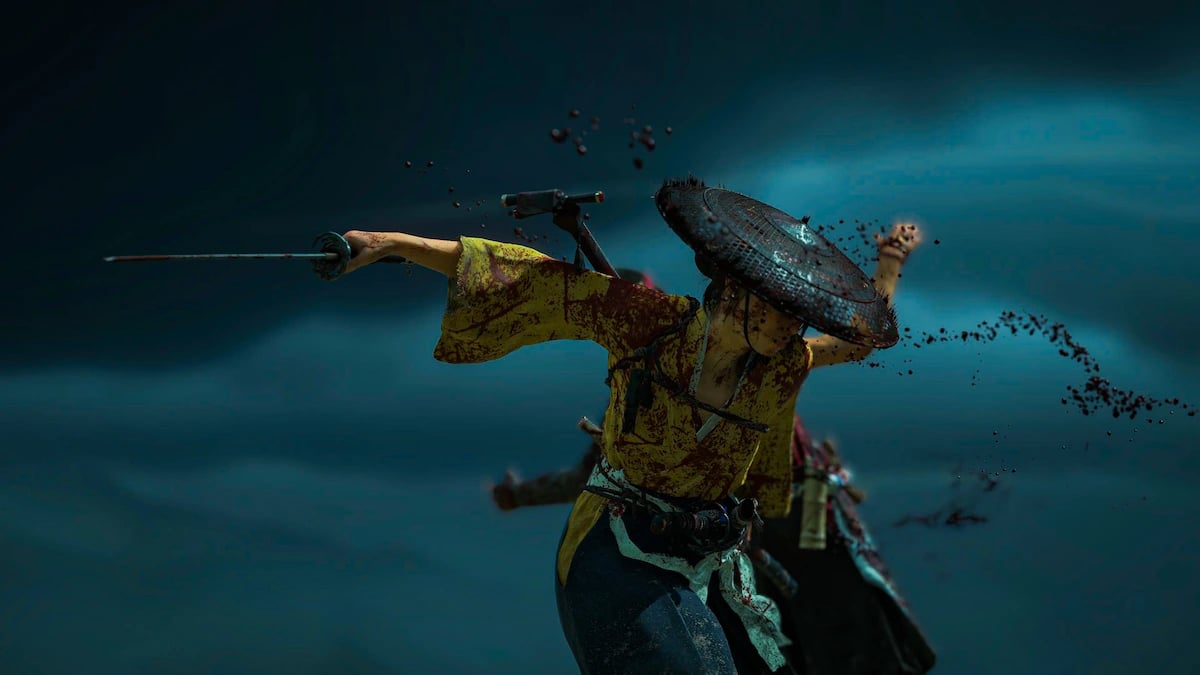
Ghost of Yōtei's photo mode is available from the first minute of play on PS5, with a 12–300mm focal range, eleven color grades, sixteen particle types, a full 24-hour time cycle, and cinemagraph capability built in. Open it with D-pad Right during gameplay or combat, hide the UI with Triangle before capturing, then save shots through the PS5 Create button to the Media Gallery. This guide walks through every setting, the decisions worth making early, and where Ezo's environments give virtual photographers the most to work with. Read on and by the end you will have a clear picture of what the toolset can do before you spend hours discovering it by accident.
TL;DR
Open photo mode with D-pad Right during gameplay and combat; at camps, use R1 instead
Archery sequences need a separate Photo Mode (Archery) toggle enabled in Gameplay Settings
There is no in-mode save button: hide UI with Triangle, then use the DualSense Create button
Autofocus locks to the character model centerline, not the face; manual focus correction is a habit worth building early
Kurosawa mode disables standard color grades inside photo mode; pick one system per session
Settings persist between sessions as long as Atsu has not moved more than a few metres
The November 2025 patch added shutter speed and a composition grid to photo mode
How to open photo mode in Ghost of Yōtei
Press right on the D-pad during gameplay or combat and photo mode opens immediately. You can enter it running, aiming, or mid-swing. At camps the D-pad drives the on-screen action menu, so the shortcut switches to R1. For archery sequences, a separate Photo Mode (Archery) toggle inside Gameplay Settings needs to be enabled first. Cutscenes are off-limits.
One detail that does not get mentioned much: if you re-enter photo mode without moving Atsu more than a few metres, all previous settings carry over. Focal length, color grade, particle selection, camera position. That makes it worth treating photo mode as a bracketing workflow. Shoot your composition, exit to adjust Atsu's position slightly, re-enter and shoot again with a different grade. You are not starting from scratch each time.
How to save your shots
There is no capture button inside photo mode itself. When your shot is ready, press Triangle to hide the UI completely, then press the DualSense Create button and select Take a Screenshot. Shots go to the PS5 Media Gallery on the home screen. The Memento trophy unlocks the first time you exit photo mode after making any adjustment. You do not even need to actually capture a screenshot for it to register.
Understanding the camera: orbit system, focal length, and focus
Ghost of Yōtei uses an orbit camera that behaves like a free camera in practice. The pivot point moves in any direction using the left stick and the L2/R2 triggers; the right stick rotates the camera around that pivot. Once it is clear that the pivot is not fixed to Atsu, the camera starts making sense. You can swing it behind environmental elements, drop it to ground level, or push it far out to capture scale without clipping through geometry. The range is modest by default, though repeatedly leaving and re-entering photo mode while pushing the camera to its limit can extend that range further.
Focal length runs from 12mm to 300mm. Both ends are genuinely useful in Ezo.
Focal length guide for Ezo
Rather than treating the focal length dial as a zoom knob, think of each range as a different kind of statement about the environment:
12–24mm: wide angles that make Ezo's terrain feel large. Snow fields, mountain approaches, large encounters where scale is what the shot is about.
35mm: Atsu in her environment without isolation or compression. Good for atmosphere shots where the world matters as much as the character.
50mm: closest to how the eye reads a scene. Headshots and mid-body portraits without distortion.
80mm: single-subject isolation with background compression. Works well against dense forest canopies or foggy ridgelines.
100mm and above: macro detail on armor, weapons, and environmental surfaces, plus distant subject compression. The wolf companion reads well at longer focal lengths when you want to fill the frame without losing surrounding context.
Why autofocus misses and how to correct it
The autofocus locks to the centerline of the character model, not the face or eyes. On a portrait at 80mm with shallow depth of field, the sharpest point in the frame lands roughly at Atsu's chest. The face will be slightly soft, enough to lose fine detail on expressions and scar texture.
The fix is simple. Let autofocus lock, then nudge the manual focus slightly forward to land sharpness on the face. Once it becomes a reflex it stops being friction. [ALLISTER: your observation on how visible this limitation is in practice and your preferred correction workflow]
The orbit camera system in Tsushima rewarded exactly this kind of patient repositioning. The best shots in the Ghost of Tsushima gallery came from not accepting the first angle the camera offered. Ezo is larger and more varied, so there is more to find if you take the time.
Color grading in Ghost of Yōtei: what each preset actually does
Ghost of Yōtei has eleven color grading presets, each with an intensity slider from 0 to 100%. At full intensity, a grade replaces the game's base color processing entirely, including full-screen effects like the red health tint, which is worth knowing when you are shooting mid-combat. Pulling intensity below 100% blends the grade with the base image for something subtler.
The grades are not filters in the decorative sense. Each one changes what draws the eye in a frame:
Maple: desaturates nearly everything except red. Useful for wounds, red armor components, autumn leaves against snow, blood on tatami. One of the stronger picks for combat and action shots.
Ginkgo: accentuates yellow tones. Golden hour forest canopy, lanterns, straw rooftops, firelit interiors.
Tintype: pushes toward a wet plate photographic aesthetic. Muted, slightly greenish, aged. Suits Ezo's Edo period setting and works for environmental shots that need historical weight.
Samurai Red: high-contrast red push without Maple's desaturation. More aggressive in busy frames.
B/W and B/W Vintage: classical monochrome and aged monochrome with different contrast and grain profiles.
Storm: desaturated and cold. Overcast environments, fog, rain.
Vivid: saturated baseline. Wildflower fields, cherry blossom, bright armor dyes.
Autumn: warm shift toward orange and amber.
Smoke: muted and slightly hazy.
The approach here parallels the Cyberpunk 2077 photo mode, where color grading functions as a compositional decision rather than surface decoration. Night City's neon palette demands completely different choices than Ezo's natural light, but the underlying logic applies to both: choose a grade that changes what the shot is about, not just how it looks.
Kurosawa mode and photo mode do not stack
Kurosawa mode activates from the game's display settings, not from inside photo mode. Turning it on disables the standard color grading options within photo mode. You cannot run Kurosawa alongside Maple or any other grade simultaneously.
The practical decision: Kurosawa applies a cinematic B/W treatment to the entire game session. Photo mode grades give precise, per-shot control. For a dedicated black-and-white session, Kurosawa is the cleaner choice. For mixed shooting across different grades in the same session, keep Kurosawa off and use B/W or B/W Vintage from inside photo mode instead. [VERIFY: confirm this behavior in Yōtei — mirrors Tsushima, flag for Allister to verify in-game]
Particles, weather, and the animated environment system
Photo mode includes sixteen particle types: Red, Yellow, Bamboo, Orange, Green, and Cherry Blossom leaves, Pampas Pollen, Ash and Embers, Fireflies, Dragonflies, Butterflies, Crows, Songbirds, and Violet Petals. Intensity and wind direction are adjustable separately. One behavior worth knowing: particles accumulate on ground surfaces. Leaves and ash settle on Atsu's clothing and nearby terrain rather than passing through. That makes a scene look lived-in rather than staged.
The Animated Environment toggle separates cinemagraph mode from full static shooting. With it on, characters freeze but the world keeps moving. Birds stay in flight, leaves keep falling, grass responds to wind. With it off, everything stops. For clean stills, off is usually the better call. For short clips where environmental motion adds life to a static frame, on gives you material to work with.
How to trigger a lightning bolt on demand
Selecting Thunder weather generates randomized lightning, but waiting for a bolt to appear in the right position is slow. There is a faster method: select Thunder weather with Animated Environment toggled off, then rapidly toggle animation on and off. A lightning bolt fires at the moment of the toggle. Repeat until the strike falls where you want it in the frame. [ALLISTER: does this technique work consistently in Yōtei as reported, or does it require significant repetition?]
For shooting types that lean on atmosphere and environmental drama, the Death Stranding photo mode guide covers a similarly weather-driven toolset. The atmospheric thinking transfers even if the environments are nothing alike.
What's new compared to Ghost of Tsushima
The photo mode structure is near-identical to Tsushima's, using the same orbit camera, a comparable menu layout, and the same general approach to color grading and particles. If you want the foundation in shared camera mechanics, the Ghost of Tsushima photo mode guide covers the overlap in full.
What Yōtei adds for virtual photography: 32:9 aspect ratio support is new (Tsushima's widest was 21:9). The particle library reflects Hokkaido's northern biome, with crows, dragonflies, pampas pollen, and violet petals that do not appear in Tsushima's selection. Tintype and Ginkgo are new grades. Atsu's wolf companion is an additional compositional subject that reads well at longer focal lengths without requiring Atsu in frame. The November 2025 patch added shutter speed control and a composition grid alongside new filters, making Yōtei's photo mode meaningfully more capable than what shipped at launch.
Ezo's climate range also gives a different palette to work with. Snow fields, alpine ridgelines, dense pine forest, and coastal cliffs offer lighting conditions that Tsushima's more consistent sub-tropical environment never provided.
Early composition ideas for Ezo
Ezo's palette rewards restraint in a way Tsushima did not always demand. The snow and fog environments push naturally toward muted grades like Storm, Tintype, or low-intensity B/W, while autumn forest interiors respond to Ginkgo or Maple depending on what is in frame. Combat freezes at the moment of a weapon counter read well at 80mm with shallow depth of field, where the compressed background implies motion without needing to show it.
The Ghost of Yōtei gallery will be updated with shots as the playthrough continues. For context on how character isolation against environment works in a different VP setting, the Stellar Blade photo mode guide covers that approach directly.
Frequently asked questions
How do you open photo mode in Ghost of Yōtei?
Press right on the DualSense D-pad during gameplay or combat. At camps, use R1 instead. For archery sequences, enable the Photo Mode (Archery) toggle in Gameplay Settings before attempting to open it during those moments. Cutscenes are not accessible via photo mode.
How do you save photos in Ghost of Yōtei?
Press Triangle to hide the UI, then press the DualSense Create button and select Take a Screenshot. There is no in-mode save button. Screenshots save to the PS5 Media Gallery from the home screen.
Can you use photo mode during combat in Ghost of Yōtei?
Yes. Photo mode can be opened mid-combat with D-pad Right, freezing the action at that moment including weapon strikes, dodges, and counter animations.
Does Ghost of Yōtei have Kurosawa mode?
Yes, but it is a display setting, not a photo mode feature. Enabling Kurosawa mode from display settings disables standard color grades inside photo mode. The two systems cannot run simultaneously.
How does Ghost of Yōtei photo mode compare to Ghost of Tsushima?
The structure is near-identical. Yōtei adds 32:9 aspect ratio support, new color grades (Tintype, Ginkgo), a larger particle library for Hokkaido's northern biome, Atsu's wolf companion as a compositional subject, and a post-launch patch that added shutter speed and a composition grid.
What color grades does Ghost of Yōtei photo mode have?
Eleven presets: None, Vivid, B/W, B/W Vintage, Storm, Autumn, Samurai Red, Smoke, Maple, Ginkgo, and Tintype. Each has an intensity slider from 0 to 100% that blends the grade with the base image rather than replacing it completely.
Why are portrait shots soft in Ghost of Yōtei photo mode?
Autofocus locks to the character model centerline, not the face. At longer focal lengths with shallow depth of field, sharpness lands at roughly chest level. Nudging manual focus slightly forward after autofocus locks corrects this in most cases.
What particles are available in Ghost of Yōtei photo mode?
Sixteen types: Red, Yellow, Bamboo, Orange, Green, and Cherry Blossom leaves, Pampas Pollen, Ash and Embers, Fireflies, Dragonflies, Butterflies, Crows, Songbirds, and Violet Petals. Particles accumulate on surfaces. Intensity and wind direction adjust separately.
What is the Memento trophy in Ghost of Yōtei?
It unlocks the first time you exit photo mode after making any adjustment. Moving the camera or changing any single setting is enough. You do not need to capture a screenshot for it to register.
Can you take photos during archery in Ghost of Yōtei?
Not by default. Enable the Photo Mode (Archery) toggle in Gameplay Settings first. Without it, the D-pad shortcut does not work during archery sequences.
Did Ghost of Yōtei get new photo mode features after launch?
Yes. The November 2025 New Game Plus patch added shutter speed control, a composition grid, and a selection of new filters. If you have been playing since release, updating the game unlocks those tools immediately.
Keep up with the Ezo gallery
The Ghost of Yōtei gallery will grow as the playthrough continues. If you are new to virtual photography as a practice, what is virtual photography is a good starting point before the settings discussion above becomes fully useful in context.