Clair Obscur: Expedition 33 Photo Mode Guide
Matt Nursalim
7/5/202610 min read
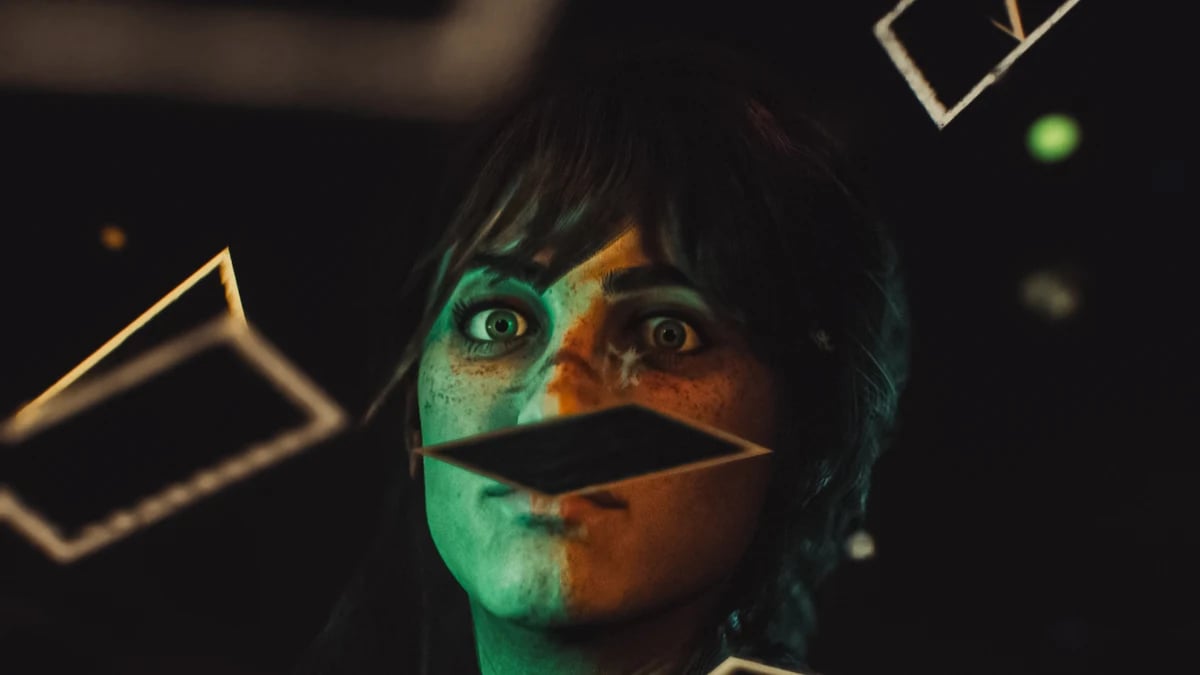
Clair Obscur: Expedition 33 got an official photo mode on December 12, 2025, added through the free Patch 1.5.0 "Thank You" update released the night the game won Game of the Year at The Game Awards. You open it from the Pause Menu, and it works at any point in the game — exploration, combat, and cutscenes included. The mode gives you a free camera with no distance limit, over 30 filters, depth of field, up to 10 custom light points, full color grading, and the unusual ability to fly the camera through in-engine cutscenes at any angle you choose. This guide walks through all of it, from access to advanced technique, so stick around to the end.
TL;DR
Photo mode arrived December 12, 2025 in the free Patch 1.5.0 "Thank You" update
Access: Pause Menu > Photo Mode, available during exploration, combat, and cutscenes
Free camera has no movement limit and passes through walls and level geometry
Over 30 filters included; lower intensity from 1.0 down to 0.2–0.4 for usable results
Up to 10 custom light points; use Display Focus Point to see exactly where focus lands
When photo mode came to Expedition 33 — and why it took until December
Clair Obscur: Expedition 33 launched April 24, 2025 without a native photo mode. An official photo mode was added in Patch 1.5.0 on December 12, 2025 — the free "Thank You" update released the night the game won Game of the Year at The Game Awards 2025. Sandfall Interactive built the mode in collaboration with virtual photography community consultant "Shinobi," with the stated goal of maximum freedom and minimum restrictions.
The game shipped in April without one, which the community noticed immediately. If you've spent time in virtual photography — moving between titles, building galleries, developing a practiced eye for what makes a scene worth shooting — you already understand why the reaction was instant. Expedition 33 is built from visual intention. Every environment reads like a painting that someone spent real time composing. Leaving without a way to step inside that and look around felt like a deliberate omission.
PC players found a workaround fast. Dmgvol's PhotoMode mod on Nexus Mods launched in late May 2025, offering free camera, depth of field, color correction, and over 20 filters. It worked, mostly. Quirks, no pose support, manual installation required. Good enough for early screenshots; not a real solution.
The night Expedition 33 won GOTY at The Game Awards, Sandfall dropped Patch 1.5.0. Senior gameplay programmer Florian Torres built the photo mode with one stated goal: as few restrictions as possible. Infinite camera distance. Collision passthrough. Ten custom lights. Cutscene access. According to Sandfall's February 2026 dev blog, the mode was shaped in collaboration with VP community consultant "Shinobi," who helped design it toward what photographers actually want rather than what studios typically deliver. That context matters when you start using the tool.
How to open photo mode in Expedition 33
Photo mode in Clair Obscur: Expedition 33 is accessed through the Pause Menu, not the Party Menu shortcut. It is available at any point after loading a save — during exploration, combat, and in-engine cutscenes. Patch 1.5.0 must be installed first; photo mode does not exist in earlier versions of the game.
Confirm your game is updated to Patch 1.5.0 or later
Load any save file — photo mode is not available from the main menu
Press pause to open the general options menu (not the Party Menu shortcut)
Select Photo Mode — it appears second or third from the top of the list
There is no hotkey to open photo mode directly. You go through the pause menu every time. Once you're inside, the mode handles well.
Camera controls — free movement, Slow Mode, and going out of bounds
Expedition 33's photo mode camera has no distance limit and passes through collision geometry, allowing it to move outside the rendered play space entirely. On PC, move with WASD and use E/Q for vertical height. On console, use dual sticks to move and triggers to control vertical height. Slow Mode is a held-button toggle for precise framing.
PC controls: WASD to move, E to ascend, Q to descend, hold Slow Mode for precision Console controls: Left stick to move and strafe, right stick to pan and tilt, triggers for vertical movement, hold Slow Mode for precision
If you overshoot, the reset button snaps the camera back to its default position relative to your character.
The out-of-bounds capability is worth exploring deliberately. Florian Torres acknowledged in the dev blog that the camera "allows players to see a lot of things we don't want to show during normal gameplay" — and framed it as an acceptable tradeoff for the freedom it provides. In practice, you can fly above an environment and see exactly where Sandfall drew the edges of a level. You can position the camera outside a cutscene and look back in at angles the director never intended to show. Level seams, out-of-frame props, geometry that only exists to complete a background the player was never supposed to see — all of it becomes available. It's not a glitch. It was designed this way.
Every setting explained — camera, depth of field, and color grading
Camera settings, depth of field, and the grid
Expedition 33's camera settings include FOV adjustment, grid overlays, frames, and a depth of field system controlled by Focus Distance and Aperture. Enable Display Focus Point to see a yellow plane showing exactly where focus is set. For portrait shots with subject separation, use a low aperture around f/2.0. For sharp environmental shots throughout the frame, use f/11 to f/16.
The grid options — Rule of Thirds being the most useful — do not appear in the final screenshot. Keep it on while framing and it won't show in your captures.
Depth of field is where the settings start requiring photographic thinking. Focus Distance controls how far from the camera the sharp plane sits. Aperture controls how wide or narrow that plane is. At f/2.0, the sharp band is thin and the background falls apart into blur — good for isolating a character face or a foreground object. At f/11 or f/16, almost everything in the frame stays sharp, which suits wide environmental shots where you want the viewer to read the full scene.
If you've used depth of field in the Cyberpunk 2077 photo mode, you already know the mechanical principle. The difference in Expedition 33 is that the game's painterly aesthetic means bokeh blends with the existing soft rendering rather than contrasting against sharp photorealism. Moderate aperture often looks better here than either extreme.
Color grading, filters, and visual effects
Expedition 33's photo mode includes over 30 filters — among them Black and White, Oil Painting, Brush Strokes, and Sketch — plus a full color grading suite with brightness, temperature, tint, saturation, contrast, gamma, and RGB curves. Filter intensity defaults to 1.0, which is almost always too strong. Reduce it to 0.2–0.4 for blended, usable results.
The color grading controls are the most practically useful part of this panel. Temperature shifts the image toward warm orange tones or cool blue ones. Tint moves between green and magenta. Expedition 33's environments run slightly cool in many locations, so a small temperature increase can bring a scene closer to what the concept art implies. Saturation, contrast, and gamma all behave as expected from standard photo editing.
The RGB curves control lets you adjust the brightness of red, green, and blue channels separately. It's the kind of control you'd find in Lightroom, not in most game photo modes.
On filters: the artistic ones are genuinely interesting for this game specifically. Oil Painting and Brush Strokes interact well with E33's existing rendering because the game already uses painted visual language. Applying a brush stroke filter at 0.3 intensity produces something that reads as intentional rather than gimmicky. Sketch works well in high-contrast scenes. At 1.0 intensity, most filters are unusable — lower them before you decide whether you like them.
Visual effects include chromatic aberration, vignette (darkens frame edges, draws the eye center), bloom, and film grain. Hide Characters and Hide Enemies toggles are here too — use them for clean environmental shots without managing party members.
The lighting system — what 10 custom lights actually lets you do
Expedition 33's photo mode supports up to 10 custom light points placed anywhere in the scene. Each can be set as a Point Light (spherical, radiates in all directions) or a Spot Light (directional beam). Per-light controls include color, intensity, hardness, aperture, and shadow casting. All lights are repositionable.
Most photo modes give you environmental lighting or a basic exposure slider. This one hands you a lighting rig. For character portraits in darker areas, three lights is usually enough: a key light positioned slightly above and offset to one side of the subject's face, a fill light on the opposite side at roughly 40% of the key's intensity, and a rim light behind the subject to create separation from the background. Spot Light with a tighter aperture setting gives you control over spill — useful when you want to light a face without washing out the environment behind it.
Point Light radiates in all directions from its placement point and works well for ambient fill or for simulating a light source that exists in the scene. Spot Light focuses output in a specific direction, making it far more useful for portrait work or throwing a deliberate shadow.
For reference: the Ghost of Tsushima photo mode relied heavily on its natural environmental lighting. Expedition 33 lets you override the scene entirely if you want to. One warm point light in a blue-toned environment can shift a shot completely.
Shooting in cutscenes and combat — what's actually possible
Expedition 33's photo mode is accessible during in-engine cutscenes. The camera is fully free during cutscenes — not locked to cinematic framing — allowing you to fly through the scene and capture angles, facial expressions, and NPC positions not visible during normal playback. Opening photo mode during combat pauses the action and allows full camera repositioning for mid-battle frames.
This is the feature that separates Expedition 33's photo mode from most of the competition. In the Ghost of Yotei photo mode, cutscene access is constrained to the intended camera range. Here the camera goes wherever you point it. You can fly to the back of a cutscene and watch a character's face react to something off-screen, observe NPC positioning from a director's-eye view, or catch environmental details placed in the frame background that you'd miss in normal playback.
Combat freezing requires some timing. Let the action play out for a moment, then re-enter photo mode to catch a frozen mid-animation frame. Battle animations in Expedition 33 hold up to close inspection — character models, spell effects, and impact poses at high aperture give you material that looks nothing like a standard screenshot.
Shot ideas and what makes Expedition 33 worth the time
Expedition 33's painterly, Unreal Engine 5 aesthetic changes virtual photography decisions compared to photorealistic titles. The game already reads like processed photography — using artistic filters at low intensity amplifies that intentionally rather than adding a layer on top of it.
The Endless Tower, which received visual improvements in Patch 1.5.0, suits the high-altitude approach — fly the camera above the architecture, look down, use a cool temperature with moderate contrast. The scale reads differently from above. Spring Meadows and Flying Waters both reward wide framing with the Rule of Thirds grid on.
For character portraits, the community has gravitated toward Lune, Maelle, and Gustave as the most photographed subjects. All three have detailed facial geometry. Lune in particular rewards close framing at low aperture with a single warm key light. Face-level camera placement with a slight upward tilt tends to read well.
For anyone coming from the Stellar Blade photo mode, the compositional instincts transfer — both games reward patience with lighting and finding naturally composed frames rather than forcing them. The difference is that Expedition 33's painterly look makes the Brush Strokes or Oil Painting filters a legitimate creative tool. At 0.2 to 0.3 intensity, layered over a well-lit portrait, they read as a considered choice. That's not something you can say about most game photo mode filters.
See the shots from the Canvas
The photo mode Sandfall delivered in December is one of the most complete implementations around. Ten custom lights. Infinite camera range. Cutscene access. RGB curves. The combination gives virtual photographers room to work that most titles don't offer, and the game's visual identity makes the results worth the effort.
To see what Expedition 33 looks like through a practiced eye, the Clair Obscur: Expedition 33 gallery at CapturedByAllister is the place to start. For how this photo mode compares across other titles, the Ghost of Tsushima photo mode guide, Cyberpunk 2077 photo mode guide, and Death Stranding photo mode guide each cover a very different approach to the same practice.
Frequently asked questions
Does Clair Obscur: Expedition 33 have a photo mode?
Yes. Photo mode was added to Clair Obscur: Expedition 33 in Patch 1.5.0, the free "Thank You" update released on December 12, 2025, following the game's Game of the Year win at The Game Awards.
When did Expedition 33 get photo mode?
Photo mode arrived in Patch 1.5.0 on December 12, 2025. The game launched April 24, 2025 without a native photo mode, though a community mod on Nexus Mods filled the gap for PC players from May 2025 until the official release.
How do you open photo mode in Expedition 33?
Press pause to open the general options menu — not the Party Menu shortcut — and select Photo Mode from the list. It appears second or third from the top. There is no direct hotkey; you go through the pause menu each time.
Can you use photo mode during cutscenes in Expedition 33?
Yes. Photo mode works during in-engine cutscenes, and the camera is fully free — not locked to the cinematic framing. You can fly it anywhere through the scene to capture angles and expressions that aren't visible during normal playback.
Can you use photo mode during combat in Expedition 33?
Yes. Opening photo mode during any battle pauses the action immediately, letting you reposition the camera freely to capture mid-fight frames from any angle.
How many filters does Expedition 33 photo mode have?
Over 30 filters are available as of Patch 1.5.0, including Black and White, Oil Painting, Brush Strokes, and Sketch. Filter intensity defaults to 1.0 — lower it to 0.2–0.4 for results that are usable rather than overwhelming.
How far can the camera go in Expedition 33 photo mode?
There is no distance limit. The camera passes through collision geometry and can move entirely outside the rendered play space. Sandfall Interactive coded this intentionally to give photographers maximum freedom.
How do I hide characters in Expedition 33 photo mode?
A Hide Characters toggle removes party members from the frame. A separate Hide Enemies toggle is also available. Both are found in the visual effects section of the photo mode menu.
What is the best depth of field setting for portraits in Expedition 33?
Set aperture low — around f/2.0 — for strong background blur that separates your subject from the scene. For environmental shots where you want everything in focus, use f/11 to f/16. Enable Display Focus Point to see a yellow plane showing exactly where the focus is set before you shoot.
Why is the photo mode camera so sensitive in Expedition 33?
The camera moves at full speed by default, which makes precise framing difficult. Hold the Slow Mode button to reduce movement speed significantly. Most precise shots — especially close-up portraits — benefit from Slow Mode throughout.
Does Expedition 33 photo mode work on Steam Deck?
Yes. The game was certified for Steam Deck in Patch 1.5.0, the same update that added photo mode. Performance on Steam Deck improved with that patch.
Where are photo mode screenshots saved in Expedition 33 on PC?
Screenshots taken through the photo mode save to the game's local screenshot folder. On PC via Steam, images are stored in the standard Steam screenshots directory for the game. The Nexus Mods PhotoMode mod (pre-official photo mode) saved screenshots to %localappdata%\Sandfall\Saved\Screenshots\Windows.